Home
Ntell World Ink, with keyboard, USB drive, the NT monogram and a mouse holding a lit bulb
/

Learning materials in cybersecurity, AI literacy, Microsoft Office, and workplace digital skills.

A mouse holding a lit bulb, beside a keyboard
// library

Courses

01Microsoft Excel Fundamentals for Employment
02Cyber Security Awareness
03AI Literacy for the Workplace
04Microsoft Word for the Workplace
05Power BI for Cyber Security
Presentations
ntworld.ink/Presentations
Digital reference and learning materials

Presentations

Decks open in any browser and work offline. Arrow keys to move, print to PDF.

Course page
Cyber Security Awareness

Session 3: Passwords and passphrases

Why length beats complexity, and what to do about the twelve accounts you have already reused a password on.

DURATION · 3 hoursLEVEL · FoundationFORMAT · Handout and practice file

Length beats complexity

A password made of four ordinary words is harder to guess than a short one full of symbols, and far easier to remember. The substitutions we were all taught in the 2000s, a zero for an O, a three for an E, are the first thing a cracking tool tries.

Key point

A passphrase you can recall without writing it down beats a stronger one taped to the monitor. Choose for the human, not the maths.

The other half of the problem is reuse. One breach at a service you forgot you signed up for becomes a way into your email, and your email is the key to everything else.

Do this today

Work through these in the session.

Watch out

Change your email password first. It is the recovery route for every other account you own, so it is the one worth doing properly.

Last updated 10 August 2026
ntworld.ink/Flashcards
Digital reference and learning materials

Flashcards

ISM Cyber Security Terms

248 cards

ISM Abbreviations

106 cards

Microsoft Security and Copilot Governance

80 cards
Resources
Circuitry, a keyboard and a mouse holding a lit bulb
ntworld.ink/resources
Resource library

Resources

A filterable, searchable library of AI, cyber security and digital references: leaderboards, interactive tools, browsers and agents, safety trackers, policy hubs and more. Search by name, filter by category, and copy any entry as a clean link and note.

Index
Ntell World Ink wordmark with a USB drive
Site index

Everything on this site

Every page, in one list.

Excel course home
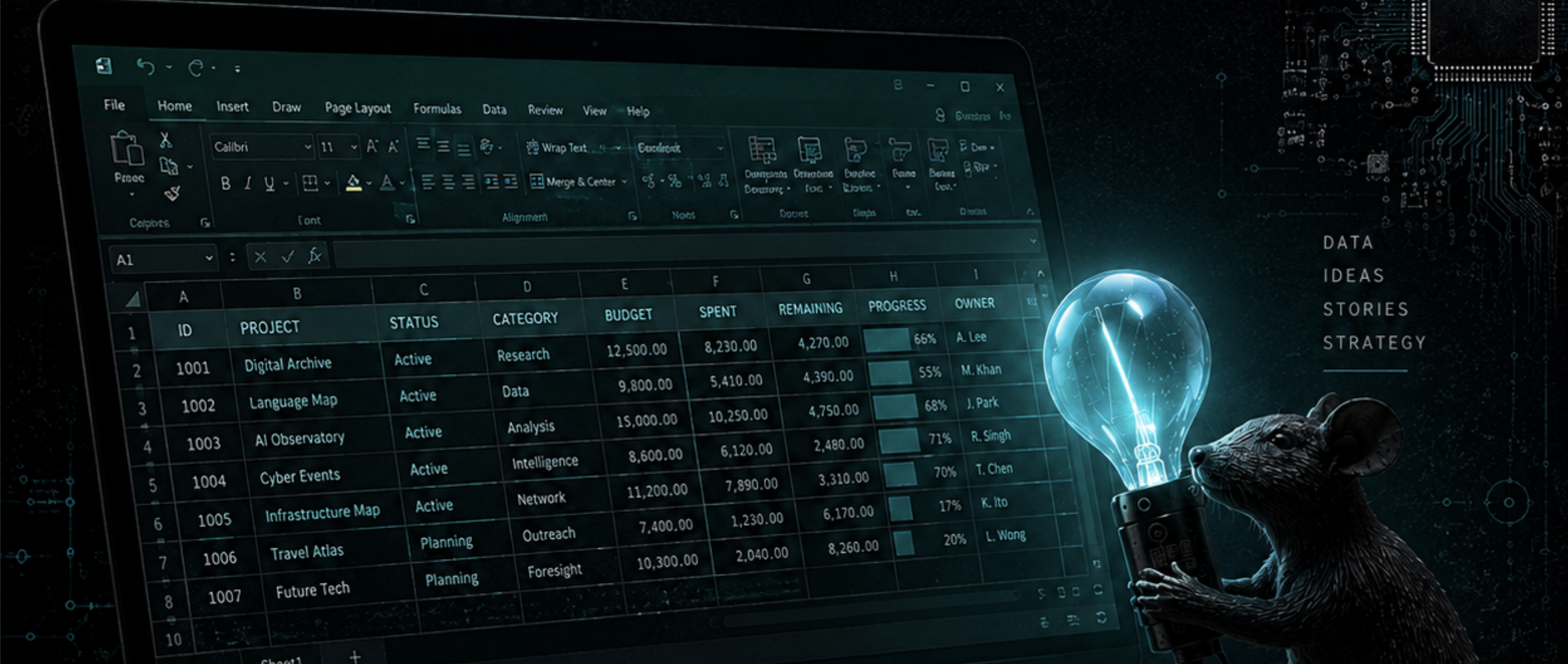
A laptop showing a spreadsheet, with circuitry and the NT monogram
Microsoft Excel · Course 2

Microsoft Excel Fundamentals for Employment

A spreadsheet is just a tidy grid for numbers and lists, and once you can find your way around it, a lot of everyday work gets quicker. This four-session course is a hands-on, plain-language introduction to Microsoft Excel for the workplace. You will move from naming the parts of the screen to entering data, writing simple sums, formatting it clearly, drawing a chart, and saving your work where you can find it again.

4 × 3-hour sessions · hands-on at the keyboardFoundation level · no experience neededFull Word handouts & practice workbooksWorks offline
Back to library
// overview

Overview

Excel can look busy and a little intimidating: a giant grid and a wall of buttons. The good news is that almost everything you will ever use lives in a handful of named areas, and once you can name them, the rest starts to make sense. This course is built to get you there, gently and at the keyboard.

You cannot break Excel by having a go. Nearly everything can be undone with Ctrl + Z. The fastest way to learn a spreadsheet is to click around in one.

// who its for

Who It’s For

Beginners, and anyone who wants to tidy up skills they half-remember. No prior Excel experience is assumed beyond basic comfort with a computer: using a mouse and keyboard, and opening and saving files. It suits people heading into administration, retail, community services, and remote-community roles, where keeping a simple list, budget, or roster in a spreadsheet is part of the work.

// what youll work with

What You’ll Work With

The practice files use everyday, work-ready scenarios rather than made-up data, so every skill lands on something familiar:

  • A contact list for an office or community service, to practise data entry, sorting and filtering.
  • Dave’s T-Shirt Shoppe, a small retail stock list, to work out profit with a simple formula.
  • A weekly budget and expense tracker, to add up totals and find the average, biggest and smallest.
  • An attendance and work-hours roster, to record hours and total them.
  • An events register of Territory suburbs and people, to sort, filter and report on.
A laptop beside the NT monogram
// the sessions

Four sessions

01

Finding your way around

Naming the parts of the Excel window, moving around a sheet, entering text, numbers and dates, speeding up typing with AutoFill, and saving your work where you can find it.

Handout
02

Formulas and the five functions

Writing simple formulas, the order Excel does the maths in, and the five everyday functions: SUM, AVERAGE, COUNT, MAX and MIN.

Handout
03

Formatting and charts

Fonts, colours, borders, number formats like currency and percentage, and turning a table of numbers into the right kind of chart.

Handout
04

Lists, printing and next steps

Sorting, filtering, tidy dropdown lists, then printing a clean report, with a short look at where to go next.

Handout
// resources

Resources

References

A plain-English glossary of every spreadsheet word used in the course, plus a short list of where to go next.

Quick-reference cards

One page per session, printable, with the keyboard shortcuts and the five functions on it.

Practice workbooks

A blank starter workbook to practise in and a finished solution workbook to check your work against.

Last updated 10 August 2026
Workshops
A mouse holding a lit bulb beside a backlit keyboard
ntworld.ink/Workshops
AI Special Topic Workshops

Workshops

Seven standalone sessions. Each one is a browser slide deck with speaker notes.

7 workshopsONE HOUR EACHBROWSER SLIDESSPEAKER NOTES
Data privacy

Where Does Your Chat Go? Taking Care of Your Data in AI Tools

Surveillance capitalism, the Cambridge Analytica story, what training on your data really means, platform-by-platform privacy settings, and the checklist to run before you type.

One hour · slides and notes
Writing and thinking

Your Brain on Autocomplete: Why Writing Still Matters

The MIT cognitive debt study, writing as brain exercise, five thousand years of writing history from Sumerian clay tablets to the scribal elite, and how to use AI without outsourcing your thinking.

One hour · slides and notes
The AI economy

Bubble Trouble: Making Sense of the AI Economy

Why the bubble question has no tidy answer: circular financing, the US-China contest, information warfare, the military dimension, and what it all means for Northern Territory organisations.

One hour · slides and notes
Benchmarks

Which AI Is Best? Reading the Scoreboard Like a Pro

Why the question has no fixed answer, how benchmarks saturate, why vendor scores beat independent ones, and how to spot a wrapper app.

One hour · slides and notes
Definitions

Beyond the Buzzword: What Does AI-Literate Actually Mean?

How AI literacy differs from digital literacy, what the research scales really measure, why the definition is still moving, and when to declare your own AI use.

One hour · slides and notes
Equity

The Price of Thinking: AI Subscriptions and the New Digital Divide

The third digital divide, what enterprise AI really costs, learning-optimised AI modes, the SOLAx WhatsApp academy, and equity strategies for the Northern Territory.

One hour · slides and notes
Global picture

Growing Up Digital: An AI World Tour

UNESCO readiness assessments for the Territory's biggest migrant-community homelands, the global sentiment and trust story, and what Anthropic's data reveals about how Australians actually use AI.

One hour · slides and notes
Client area — Roper Gulf
Home/Library/Roper Gulf Regional Council
Roper Gulf Regional Council

Digital Literacy & AI Training

Five online sessions for Roper Gulf Regional Council staff, delivered via Teams. Each one builds practical, everyday skills in Microsoft 365 and AI, and links straight through to a hands-on practice tool at the moment you need it.

5 sessions · two hours eachBeginner friendly · no IT background assumedBuilt for remote and regional delivery
// Acknowledgement of Country

We acknowledge the Traditional Owners and custodians of the lands and waters across the Roper Gulf region, and their enduring connection to Country, culture and community. We pay our respects to Elders past and present.

// how it runs

How the course runs

Five sessions of two hours each, run live in Teams. The order is deliberate: we start with staying safe and understanding AI, then move into creating documents, working together, handling data, and finish with a relaxed wrap up. Every session has its own page below, laid out as a running order from start to finish.

Practice tools open in a new window

Throughout the sessions you will see buttons that open a hands-on tool. Each one opens in a new browser tab, so this page stays put and you can flick back to it. The tools also live in the Simulation Tools catalogue, so you can return to any of them after the session.

// the five sessions

The sessions

01

AI Literacy, Information Security, and Getting Started with Copilot & Word

Where the training sits in the council's AI direction, what stays out of AI tools, what Copilot is and how to prompt it, and setting up clean Word documents.

  • Copilot as the council's approved tool, and why it matters
  • Recognising personal and sensitive information
  • Five prompts to try, plus Word heading styles and a table of contents
Open →
02

Microsoft Teams: Meetings, Presenting, and Minute Writing

Joining and hosting Teams meetings, presenting a deck, recording with consent, and turning a Teams Premium recap into usable minutes.

  • Meeting controls, hosting, and recording with consent
  • Presenting a deck with screen share and PowerPoint Live
  • Transcripts and recaps into minutes and tracked actions
Open →
7 August · no session

A homework week. Staff gather their information and build their orientation deck, ready to bring to Session 3.

03

Microsoft 365 in Practice: Presenting, File Sharing, and Copilot for Email

Presenting your deck live in Teams, sharing files with the right permissions, and using Copilot to draft and refine email.

  • Present your orientation deck in a Teams meeting
  • File sharing, and the right permissions for the right people
  • Copilot for email, with the documents linked
Open →
04

Microsoft Excel with Copilot

Sort and filter, your first formulas, how Excel stores dates, and Copilot as a patient tutor for functions and formulas.

  • Sort and filter to find your answer
  • First formulas, and how dates really work
  • Copilot to explain functions and suggest formulas
Open →
05

Wrap Up, Questions, and AI Image Generation

A relaxed close, open questions, and a memorable activity that shows what generative AI really does.

  • Everyone generates the same picture, and none match
  • How image generation works, in plain English
  • Open floor: revisit any tool, ask anything
Open →